If you lead revenue at a B2B company, sales alerts tell a rep when a buyer does something worth answering. In HubSpot you set them up in each person's notification settings and, for custom cases, in workflows. The skill is choosing few alerts and sending them to the right person.
This guide is for CEOs, founders, CROs and sales leaders, and for the HubSpot admins who will build the setup. You get six numbered steps, each ending in what done looks like, plus the checks to make first and the mistakes that turn alerts into noise.
|
Sales Alert A notification that tells a seller a contact or deal did something worth acting on, such as submitting a form or replying to an email, so the seller can respond while the moment is fresh. |
By the end you will have alerts your reps act on
A working setup is small enough that every rep can explain it and specific enough that nobody mutes it.
- A written list of the signals that earn an alert, each with an owner and an expected response.
- HubSpot notifications switched on for each rep, in the channel where that rep will receive them and actually look.
- Sales notifications for email replies, form submissions, website visits and deal changes.
- One or two custom alerts built with workflows for signals the defaults do not cover.
- A monthly review that retires alerts nobody acts on.
Shoppers use "sale alerts" to avoid checking retail websites by hand: they create retailer accounts, add wishlists, set target prices and get price drops by email, text or push, with price history that shows whether a sale is real, daily page checks and deal-site keyword alerts. This guide covers the B2B meaning.
What to have in place before you start
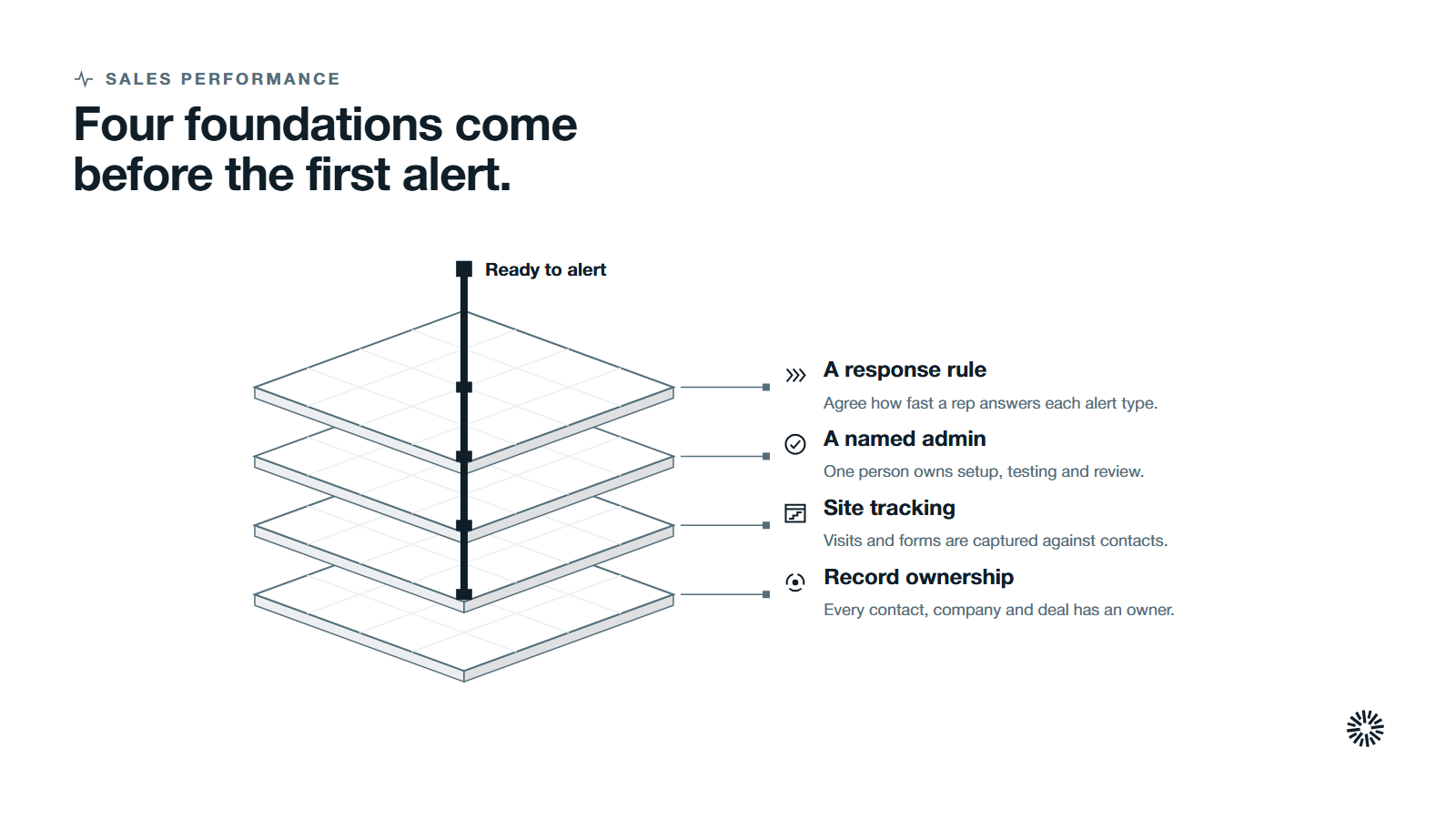
Alerts only help when the data and the people behind them are ready. Close any gap here first.
- Clear record ownership. Alerts for a contact, company or deal go to its owner, so every record needs one. If ownership is loose, fix routing first with the lead routing workflow.
- Tracking on your website. Visit alerts depend on website activity being captured against known contacts, and form alerts depend on HubSpot forms. Check the site tracking before you promise anything to reps.
- A named admin. One person owns the setup, the testing and the monthly review.
- A response rule. Agree how fast a rep should answer each alert type. Without it, an alert is just information that nobody is waiting on.
Plan for the volume, too. Salesforce's 2026 State of Sales survey of 4,050 sales professionals found that the average seller spends 40% of their time selling. Every alert that interrupts the rest of the day should earn its place.
If you want the wider picture first, HubSpot Operations Hub explains how data, sync and automation fit together behind a setup like this.
Sales alerts in HubSpot in six steps
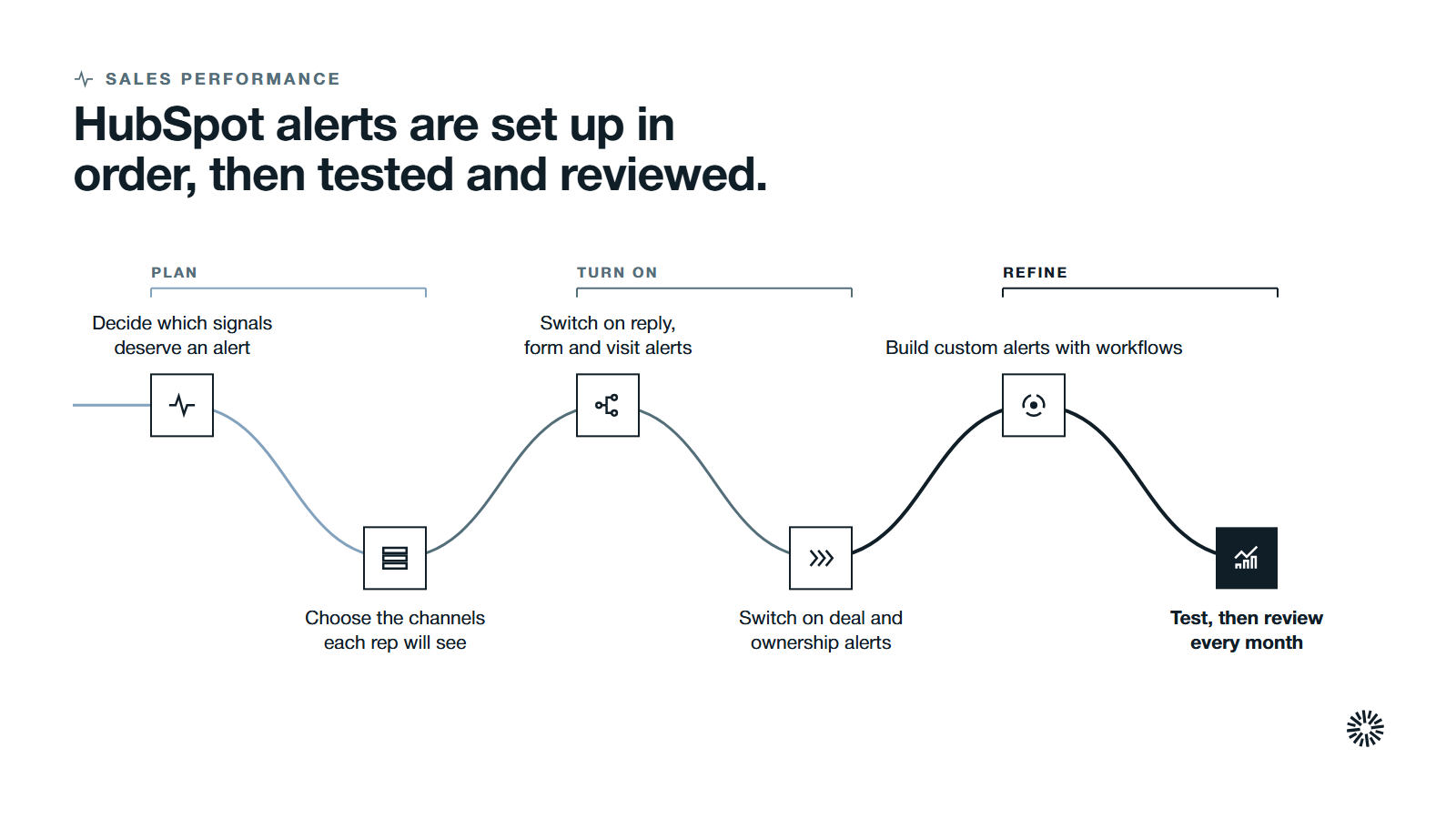
Each step ends with what done looks like. Work through them in order, because later steps use the decisions you make early.
1. Decide which signals deserve an alert
Start on paper, not in HubSpot. An alert is worth sending only when a rep would act differently within a day because of it. The window for a good reply is short. Name the page URLs that count as key pages, such as pricing or demo pages.
Signals that fail that test belong in a report or the record timeline. That is the difference between an alert and a report: one asks for action now, the other informs. Compare each candidate with the action it would trigger, and raise the bar for anything that only informs. For the full picture, read our complete guide to signal based selling.
A good first list covers a handful of moments that show real interest. Tie each one to a person and an action.
| Signal | Who hears about it | What they do |
|---|---|---|
| A lead submits a high-intent form | Contact owner | Reply and book a conversation |
| A lead or contact replies to a tracked email | Email sender | Answer the question asked |
| A known contact visits a key page on your website | Contact owner | Check the record, then reach out |
| A deal moves stage | Deal owner or followers | Confirm the next step |
| A record is assigned to a rep | The new owner | Review it and make first contact |
Relevance matters because buyers notice when it is missing, and a gap between an alert and a fitting reply is where interest cools. Gartner's survey of 632 buyers, published in June 2025 of 632 B2B buyers found that 73% actively avoid suppliers who send irrelevant outreach. An alert should lead to a message that fits what the buyer just did.
You are done when one page lists each signal, its recipient and its expected response, a sales leader has agreed to it, and you store it where every rep can find it.
2. Choose the notification channels each rep will see
HubSpot notifications can reach a person in several ways: a pop up that appears on screen while they are logged in and active in HubSpot, a browser notification when they are in another tab, the bell in the navigation bar, email, the mobile app, connected team chat tools and other apps.
Each user sets their own, because notification preferences are specific to the user, so an admin cannot set them for a teammate.
To set the defaults for a channel, open your notification settings: click the settings icon in the top navigation bar, navigate to Notifications in the left sidebar, then click Set channel defaults and turn each channel on or off.
You can also adjust the sound for pop up alerts, and use the search bar to find a topic.
Match the channel to the urgency. A form from a ready buyer suits a pop up or mobile push. A routine summary suits email notifications. Notifications shown by the HubSpot Sales extension in the browser are managed in the extension's own settings.
Pop up notifications display on screen while a rep is active in HubSpot, and browser notifications cover the times they are not. If a rep lives on a phone, install the app and turn on the mobile app notifications on that device.
If they work at a desk, desktop notifications fit best. Desktop notifications need permission in the browser, and a rep who uses a new browser or login has to allow them again.
You are done when each rep has chosen at least one channel they check during the working day, and the admin has written down which channel carries which alert.
3. Turn on email notifications and sales notifications for replies, forms and visits
Now switch on the sales notifications that match the signals from step one, so each rep gets notified of the right events. Every sales notification you tick should map to a row in your step one list.
On the same notifications page, expand the topics and tick the boxes you want, then save. Changes can take a few minutes to apply.
- Email. Turn on notifications for when someone opens, clicks or replies to an email you sent, so you can reply while the thread is warm.
- Form submissions. Tick the form submission notification so you receive a message when a visitor or contact submits a form. HubSpot's form guide notes that a repeat submitter is flagged as a reconversion, which is useful for spotting people who keep engaging.
- Website visits. Website visit notifications can be turned on for a saved filter in the website visits tool, using Actions, then Manage Notifications. HubSpot's page recommends email notifications for these.
Your reps can also review their sales notifications and recent activity in the sales activity feed, which lists email opens and clicks, shared document views, booked meetings and form submissions from contacts they own.
You are done when each rep has received at least one real alert for each signal on the list.
4. Turn on deal and ownership alerts
Deal changes are signals too. In the same settings, the Deals topic lets a rep hear when a deal is assigned to them, when a deal they own or follow moves to a different stage, and when someone mentions them on the record.
A manager who follows a deal is notified of its stage moves without owning it. Contacts and companies have matching notifications for new assignments.
Tasks and quotes work the same way. A rep can hear when a task is assigned, when it is due and when someone mentions them in a note on it, and can opt for one weekday email that summarizes their tasks.
Tasks created through HubSpot's API do not trigger a notification. Quote notifications go only to the quote owner, including when a quote is signed or paid.
Comments matter too: a rep can be notified when they are mentioned in a comment on a record, and the same topic list covers comments on blog posts. Large export notifications are set separately in the Import and Export settings.
Reps should know which sales notifications to expect, so share the list with them. Know the exceptions so nobody thinks the system is broken.
Please note that HubSpot does not notify you when you assign a record to yourself, and a deal owner who changes the stage by hand does not get a notification for their own edit. Assignment notifications can also arrive up to five minutes late.
You are done when a test assignment and a test stage change each reach the right person.
5. Build custom alerts with workflows
The default notifications cover common events. For anything else, use a workflow. HubSpot states that its standard notification email templates cannot be customized for wording or fields, and points to workflows when you want a tailored message.
Inside a workflow, the Send in-app notification and Send an internal email notification actions both work in every workflow type. The internal email can go to specific users, teams or record owners, and you can add tokens so the message carries details from the record.
When you target a team, only that team's primary members get the notification, so check membership before you rely on it. Which workflow features you can use depends on your account, so check HubSpot's guide to creating workflows for what applies to yours.
Keep each custom alert tight. State what happened, why it matters and what to do, and paste in the link to the record and the page URL the buyer visited, so the rep sees the context on a phone screen.
A link in the message takes the rep straight to the work. Use the owner as the recipient so one person feels responsible, and store a copy of the alert text with your routing rules. If a new lead has no owner yet, send the alert to the person who handles routing.
You are done when every custom alert has a trigger, a recipient, a short message with the record details and a test run that reached the right inbox.
6. Test the alerts, then review them every month
Test as a buyer would. Submit a form from a test contact, reply to a tracked email, move a test deal and confirm each alert arrives where you said it would.
If an alert does not appear, check the basics in order: the user's own notification setting for that topic, the channel switched on, the email address, and whether the person unsubscribed from that notification type. HubSpot turns off a notification type when a user unsubscribes from it in an email.
Then set a monthly review. For each alert ask whether reps acted on it, how fast, and whether it was the right person. Retire the ones nobody uses and tighten the rest.
Review the sales notifications each rep receives, and watch for any that go unread. Store the agreed response times where the whole team can see them, and paste the test results beside them.
The activity feed timeline report in the report library gives you a view of this activity, and you can keep it on dashboards that display response times for the weekly check-in, alongside other dashboards. Refresh the signal list at the same time, and compare it with what reps actually did each week.
Watch the response time, and pair this with a response rule from your speed-to-lead process, so a hot alert gets a quick answer.
You are done when the admin has scheduled a dated review in the calendar and a record of which alerts were changed or removed.
Mistakes to avoid with sales alerts
Most failed alert setups repeat the same few errors. Check yours against this list.
- Alerting on everything. When every action creates a message, reps stop reading them and miss the one that matters.
- Sending alerts to a team inbox. If everyone gets it, nobody owns it. Send each alert to a named owner.
- No expected response. An alert with no agreed action is a nudge that nobody follows up.
- Treating a visit as a verdict. One page view on your website is a hint, not a buying decision. Pair it with another signal before you push hard.
- Skipping the test. Settings that look right can still fail to deliver, so test each alert end to end.
- Never retiring alerts. Buying patterns change. Review alerts every month and remove the dead ones.
For the wider method of choosing and acting on buyer behavior, see intent signals to sales action.
What you gain when this is done properly
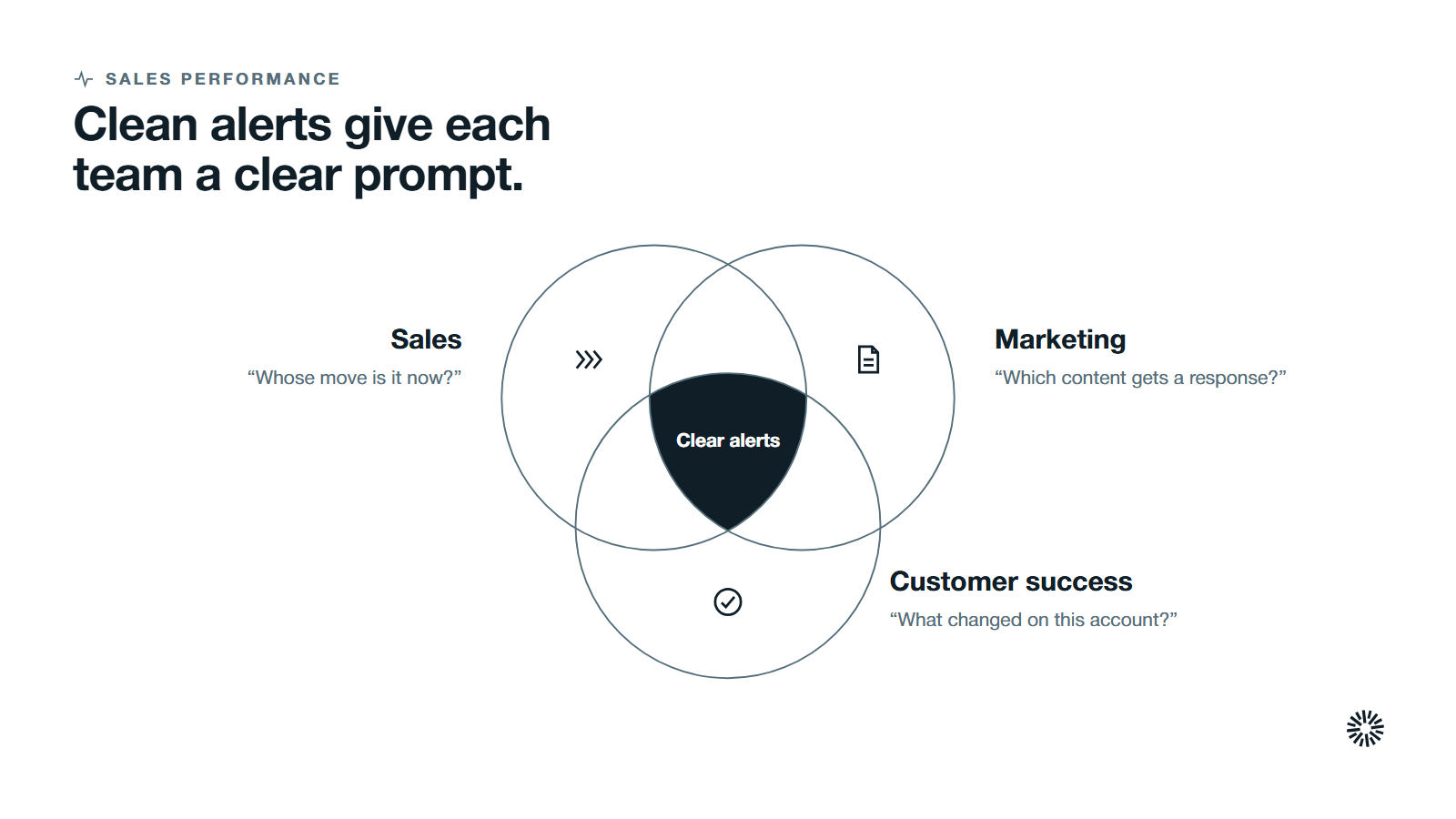
Clean alerts turn scattered activity into a few clear prompts. Each team gains in its own way.
Sales hears about interest while it is fresh
Reps receive the reply, the form and the stage change when they happen, and know whose move it is. They spend their time answering buyers instead of hunting through records for activity.
Marketing sees which content gets a response
Form and page alerts show marketing which blog posts, offers and website pages produce conversations that reps pick up. Seeing the difference between pages that start conversations and pages that do not tells the team which content deserves more effort, and which forms need a clearer promise.
Customer success catches changes early
Customer success can turn on the same notifications for deal changes and record assignments, plus feedback surveys. A new submission from one of those feedback surveys, or a stage change on an expansion deal, reaches the right person without anyone chasing it.
Alert on the moments that matter, and keep the rest quiet
Good sales alerts are a design choice on the HubSpot platform: a short list of signals, a named owner for each, a channel that fits the urgency and a monthly habit of pruning. HubSpot supplies the switches. You supply the judgment about which signals deserve a person's attention.
Propello designs and builds connected GTM systems on HubSpot, and Propello is a HubSpot partner. If you want your alerts, routing and reporting set up so reps act on the right signals, an audit is the place to start.